Dynamic Malware Analysis
Analyzing the behavior of malware on a Windows VM.
To began the malware analysis, monitoring tools such as Process hacker are opened before executing the suspicious programs. Process hacker allows us to see the process activities. When the the malware is initiated, we should expect to see it under the explorer.exe process.
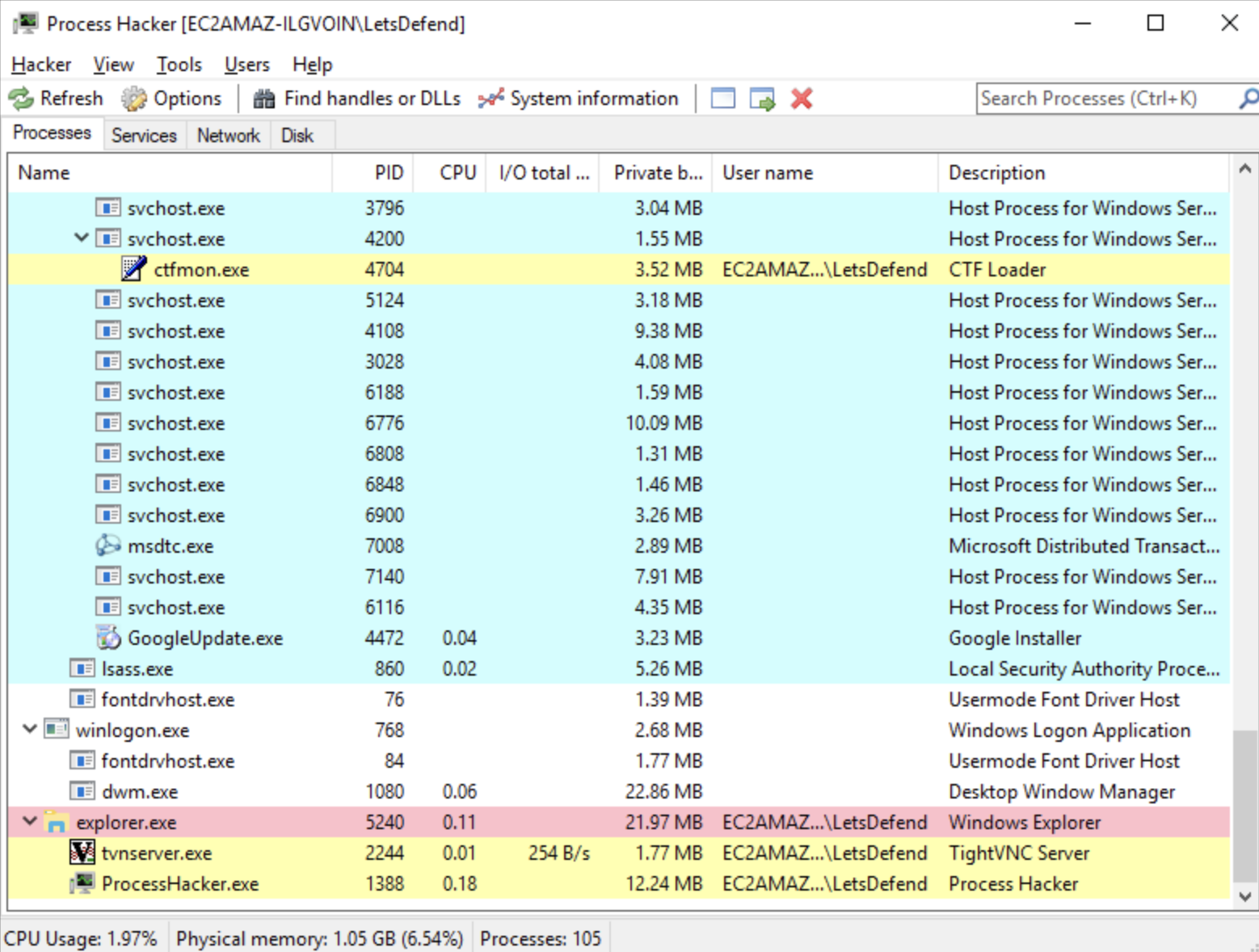 Figure 1 Process hacker displaying current process activities
To see network activities, Wireshark is opened. It captures live packet data from the network interface.
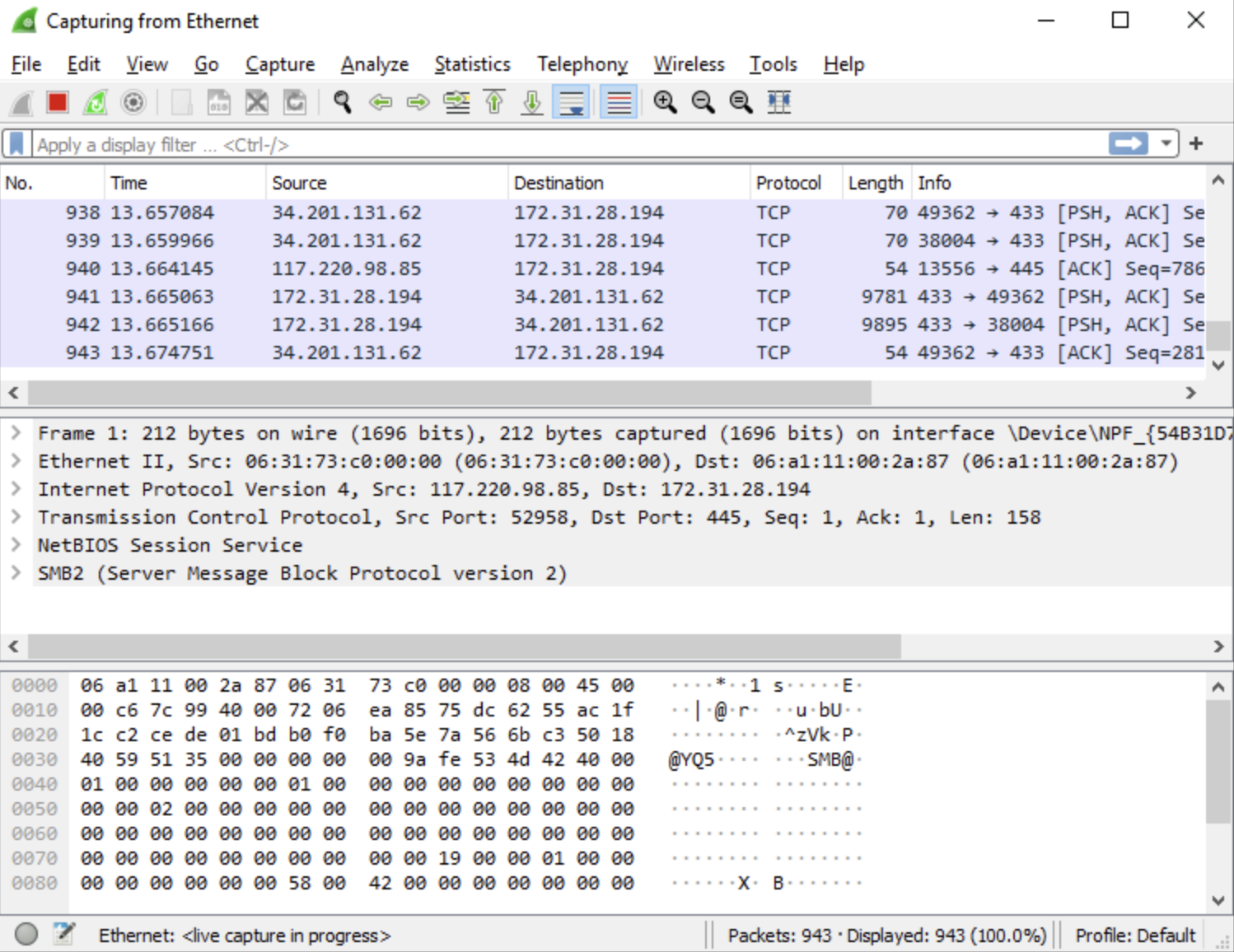 Figure 2 Process hacker displaying current process activities
Wireshark was opened before the malware was executed to give an overview of the current network traffic.
Analyze
RegShot is ran to view registry activities. A snapshot is taken of the system before any system changes by clicking ‘1st shot’, then shot. Checking the box for “scan dir1[;dir2;…;dir nn]” allows the RegShot to temporarily store it’s file in the designated folder.
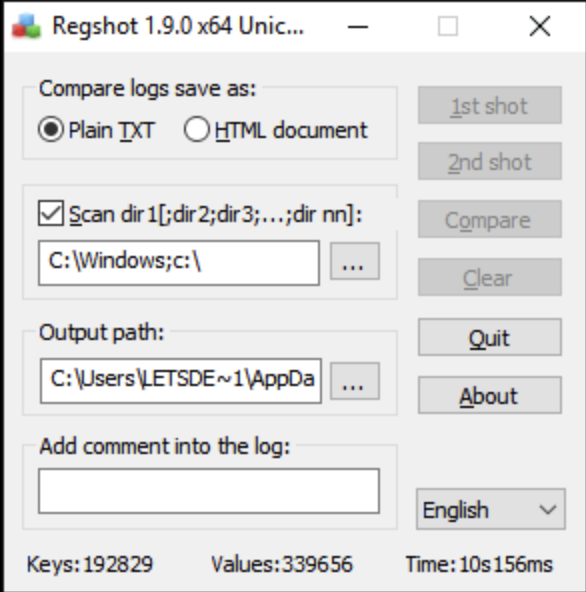 Figure 3 Regshot taking a snapshot before system changes
After taking a snap shot of the system, the suspicious program is extracted from zip file: e-Archive Dekont.exe. Process monitor is opened and used to monitor its child processes. The extracted file, 722ef401e5cbb067c5c33faa402774d3c75ef08e0c8cc4d7e66a9cfa53684088 is opened using the run as administrator command from the shortcut’s contextual menu.
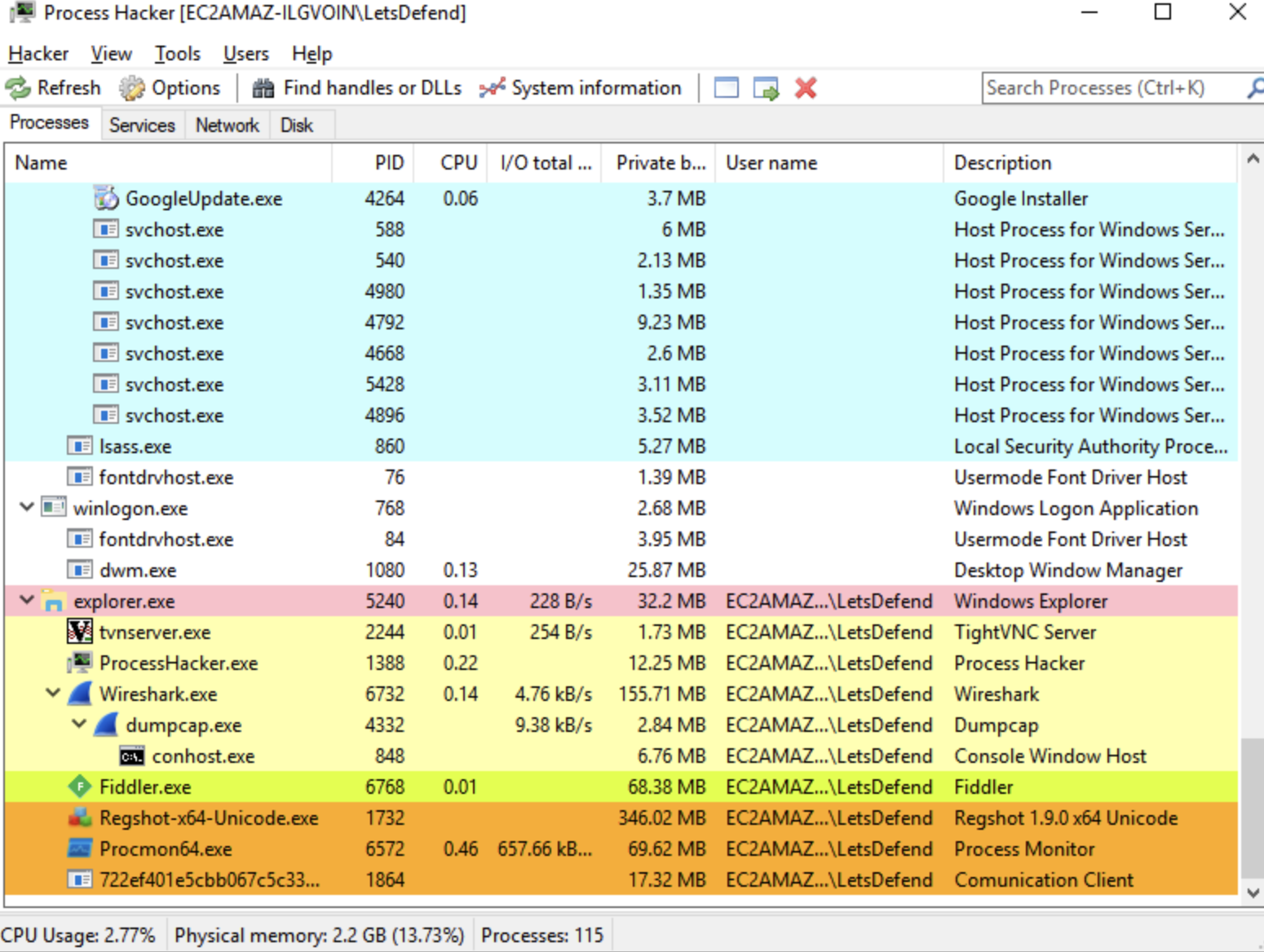 Figure 4 Process monitor displaying the suspicious extracted file
After the suspicious file is opened and ran, Wireshark captures any traffic the file generates. The live capture is then halted to analyze the traffic generated from the file.
I filtered through the captured packets using ‘dns’. A query request is attempted to domain 5gw4d.xyz from ip address 172.31.3.28. A search of of the source IP address: 172.31.3.28 and the destination IP address: 173.31.0.2 determined both IP addresses were private. Further information could not be obtained.
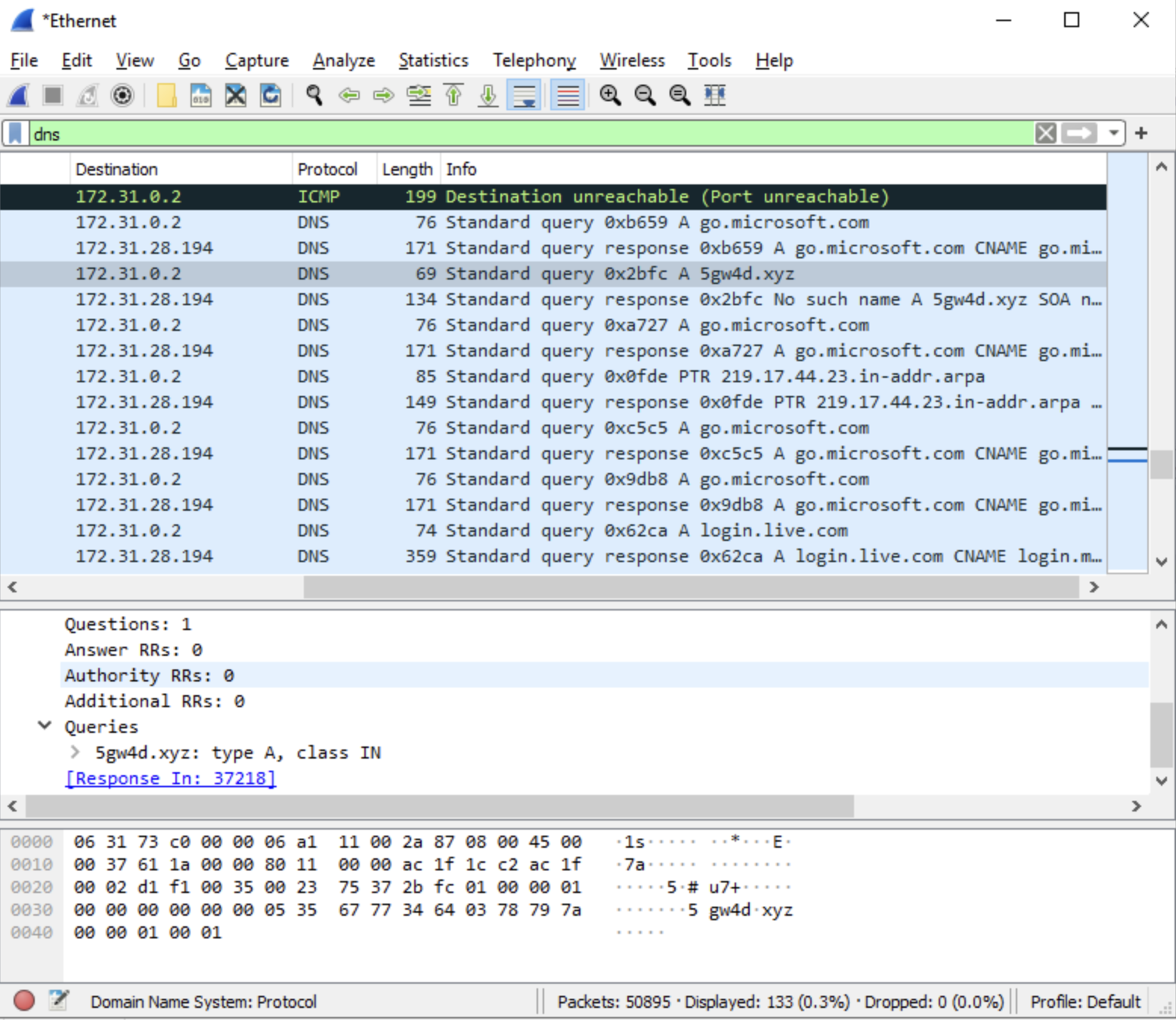 Figure 5 Wireshark capturing halted after suspicious file opened
The Regshot displays a schedule task for the new malware, it can be obseverd in figure 6.
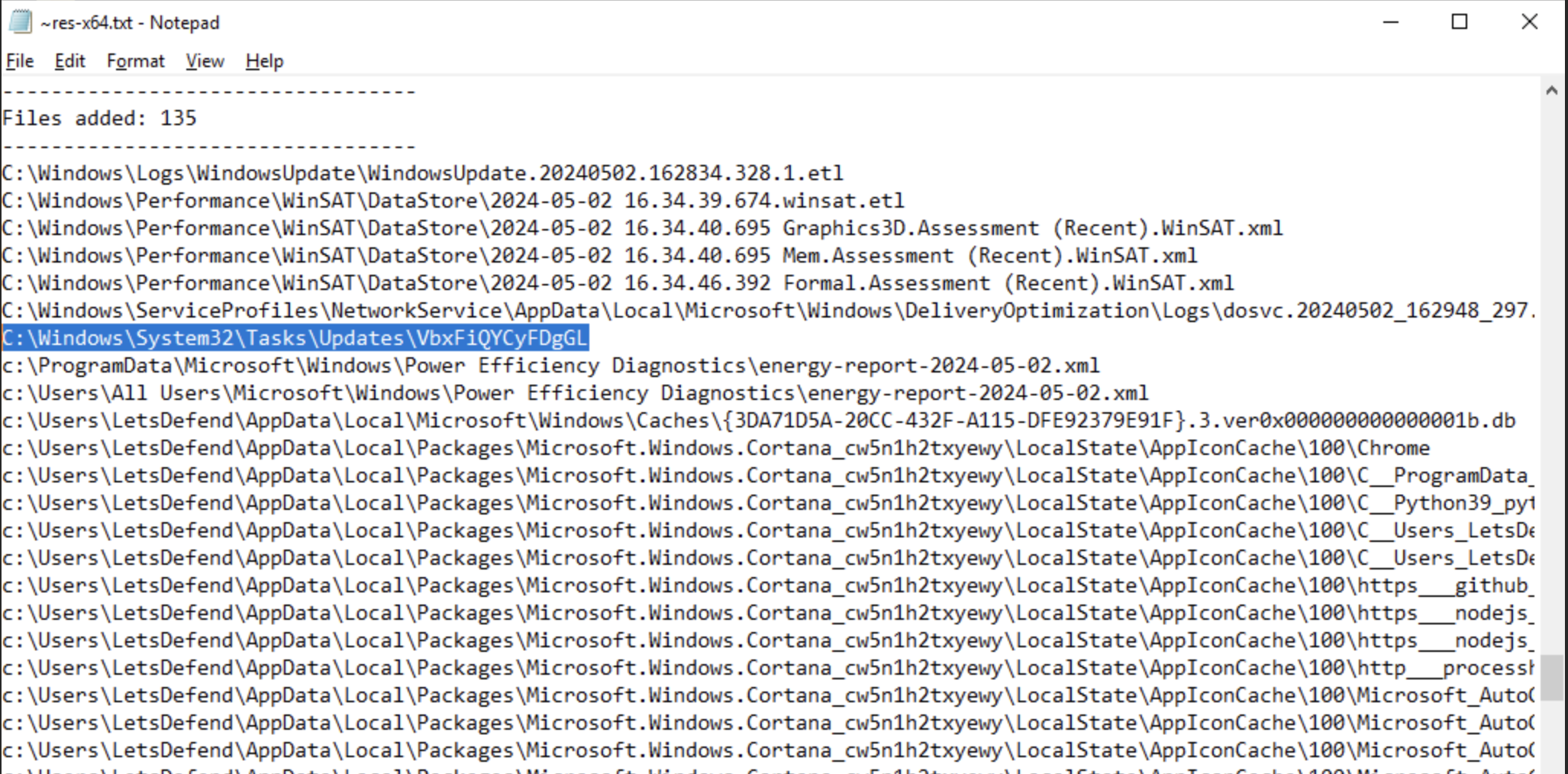 Figure 6 Regshot capture of system after malware was executed
In the windows task scheduler, under the updates tab it displays a malware created from the e-Archive Dekont.exe file. This malware will run at log on as displayed in the screenshot (figure 7).
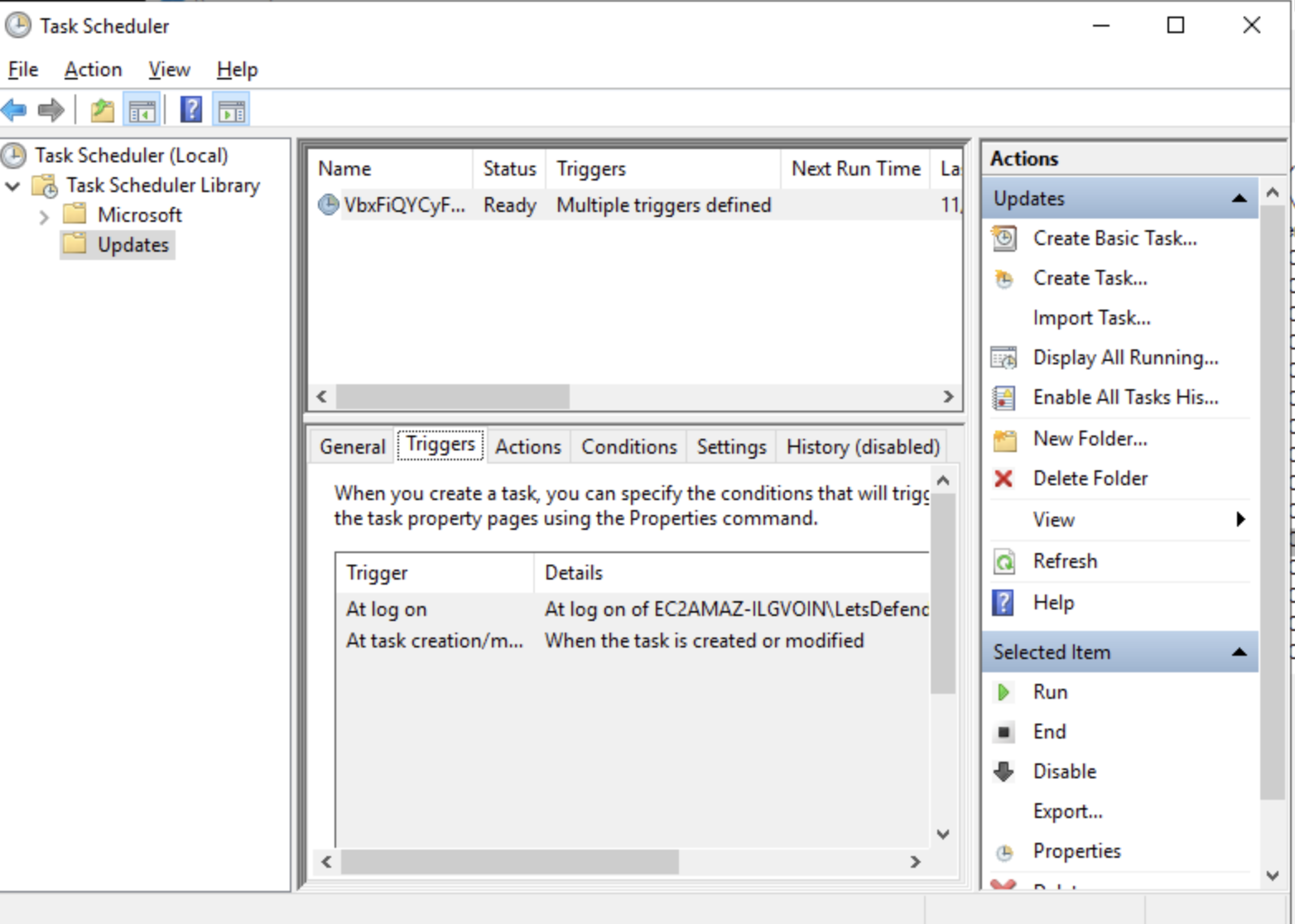 Figure 7 Windows task schedular displaying the new malware
Summary
The purpose of this malware analysis was to understand the behavior, functionality, and impact of a malicious software. Through analyses, it was determined the malicious software creates a new malware. This new malware schedules a task to execute at logon. Considering this, every time the system reboots, the scheduled task excutes, re-launching the malware. This allows the malware to remain persistent and evade detection.